
Breathedge 2 Settings and Performance
Cap frames, cut shadows, keep native resolution, and do not EVA at 22 FPS.
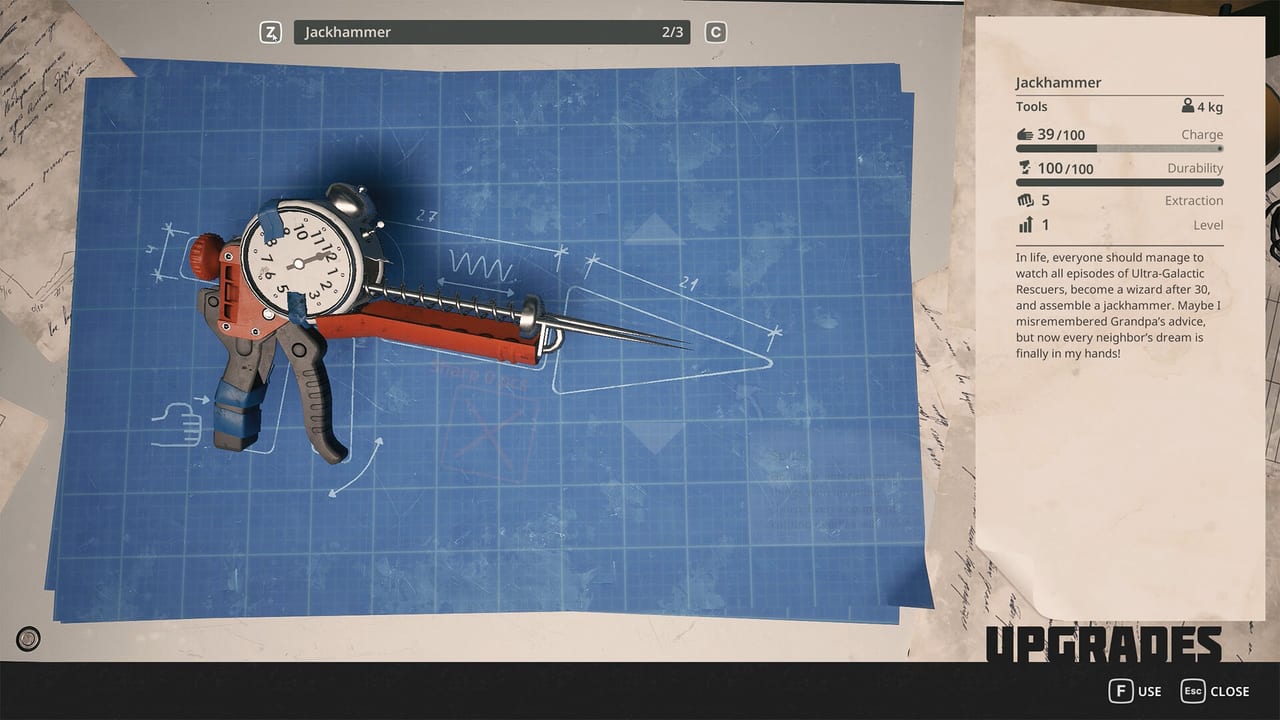
Breathedge 2 will try to look expensive. Your job is to keep it playable. This page is a settings order of operations for Unreal Engine 5 in a debris field, written before 1.0 sliders are frozen. Names of individual toggles can shift; the order you touch them should not. Confirm everything in-game. Pair with system requirements and controls.
First launch checklist
- Set display mode to fullscreen or borderless. Exclusive fullscreen sometimes helps old GPUs; borderless helps alt-tab to this wiki when you die.
- Set resolution to native. Do not “upscale from 720p” until you have already cut shadows and effects.
- Cap FPS to your panel (60, 120) or to 40 on Steam Deck. Uncapped UE5 in a junk storm is heat for no aim benefit.
- VSync on if you hate tearing; off if you already have a driver cap.
- Turn motion blur off if you EVA a lot. The original game already had jarring menu-music cuts; blur on top is how people get sick.
- Bind interact, inventory, thrust, extra hand. Then leave settings. Getting started.
What to lower first on a minimum GPU
A GTX 1660 / 5500 XT is the floor. The hero screenshot is a worst case: overlapping translucency, particles, unique props, first-person arms. Lower in this order:
- Shadows — biggest tax in clutter.
- Effects / post-process — bloom on blue gel is pretty and expensive.
- Foliage-equivalent density — here that means debris and background rocks, whatever the slider is called.
- Reflections — interiors plus visors.
- View distance — last, because Breathedge navigation uses landmarks. If the planet disappears, you will get lost. See map.
Keep sharpness / resolution native as long as you can. A 1080p medium wreck you can read is safer than a 1440p soup you cannot pry.
Steam Deck and handhelds
Verified means defaults should work. If the fan is a boss fight:
- 40 FPS cap, TDP moderate.
- Lower shadows one step below default.
- Use FSR only after shadows and effects.
- Back buttons: interact + extra hand.
- Do not dock to a 4K TV and expect desktop ultra.
Thermals are a survival metaphor you did not ask for. Believe them.
Comfort and accessibility
- FOV: raise slightly if you get cramped in cabins; lower if EVA motion is nauseating. There is no trophy for 120 FOV.
- Camera shake / film grain: off for most people.
- Subtitle size: the writing is the joke. If you miss a line, you miss a clue. Walkthrough.
- Color: HUD meters must stay readable. Do not apply a wild filter that hides the oxygen bar.
- Hold vs toggle: pick one for crouch/sprint and live with it. Mixed binds plus EVA inertia is how you clip into a ring wreck.
Audio
Demo players complained that music hard-stopped in menus. If that is still true, it is a studio quirk. Lower music, keep SFX up — hisses, recharges, and Chicken noises are information. Headphones help in interiors; they also make oxygen warnings harder to ignore, which is the point.
When a patch changes the rules
If a major update adds Lumen-heavy interiors or denser planetary surfaces, this page’s order still holds: shadows, effects, density, then upscalers. Check updates for “we added a performance preset” notes. Do not download random .ini packs from strangers.
Settings are solved when you forget they exist during a job. Until then, cap the FPS, cut the shadows, and go find plastic in a suitcase. The items hub can wait until the frame time is boring.
Frequently Asked Questions
Quick answers to the most common questions.
What should I turn down first?
Shadows, then effects, then debris density. Keep native resolution as long as you can. A GTX 1660 is a floor, not ultra.
Should I use an upscaler immediately?
Only after shadows and effects. Upscaling a wreck you already cannot read does not help pry puzzles.
Steam Deck is loud. What now?
Cap at 40 FPS, lower shadows, moderate TDP. Verified is not silent. See system requirements.
I get motion sick in EVA.
Off motion blur, lower FOV slightly, add an FPS cap. Bind thrust to something you can feather. Controls.